You are using an unsupported browser. Please update your browser to the latest version on or before July 31, 2020.
close
You are viewing the article in preview mode. It is not live at the moment.
Home > Microsoft Office Suite > Microsoft Teams - Create Ad Hoc Meeting
Microsoft Teams - Create Ad Hoc Meeting
print icon

Create Ad Hoc Teams Meeting with a link to be shared.


Open the Teams app. 


On the left-hand side, choose Calendar.

 

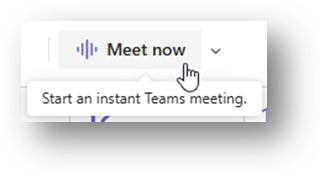
At the top of the Calendar page, choose Meet Now. 
 

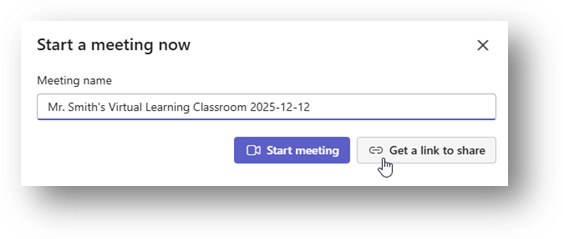
In the Start a Meeting Now window that opens,

give the new ad hoc meeting a meaningful title.


… and Click [Get a Link to Share]
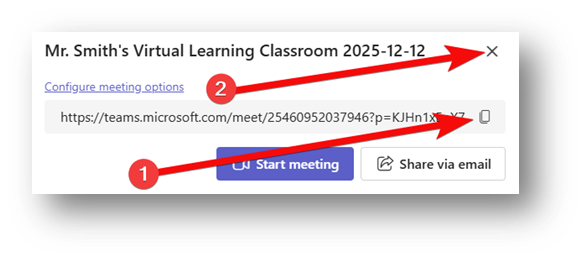
In the Meet Now confirmation window,…


  1. Be sure to click the COPY LINK  button to capture the meeting link.
    This is the link to be used by teacher AND students to enter the meeting room.
    You’ll need to share this link with your students.


  1. You can just close this window and start the meeting later when you’re ready.


  • OR You could start the meeting now using the START MEETING button.


Teachers will use the same link that was shared with students to enter the meeting room. Teams will know the teacher is the meeting organizer and the students are participants.



The default meeting options require students to wait in the lobby, the teacher will have to enter the meeting first, effectively “Starting” the meeting.


The meeting can be closed and re-opened multiple times. These links do not expire.


Feedback
0 out of 0 found this helpful

Attachments

Create_Ad_Hoc_Teams_Meeting.pdf
scroll to top icon