3999
3999
Go to the App Store or Google Play Store on your phone and download the Microsoft Authenticator App
Outlook on the web:
Go to https://outlook.cloud.microsoft/mail/?realm=shadysideacademy.org and Choose Work or School Account
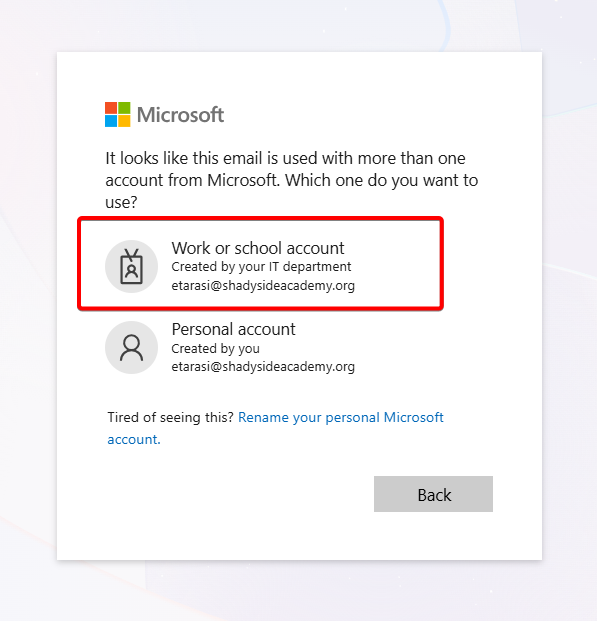
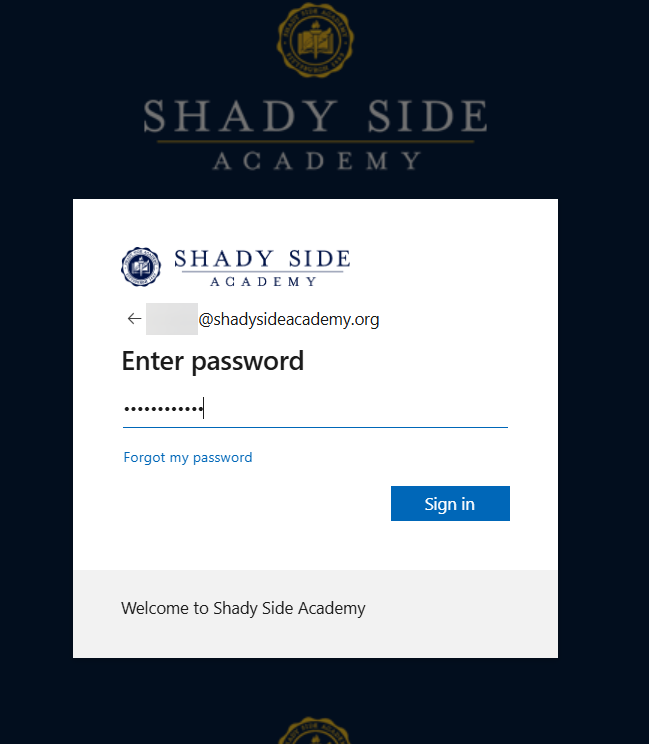
Enter email address and password
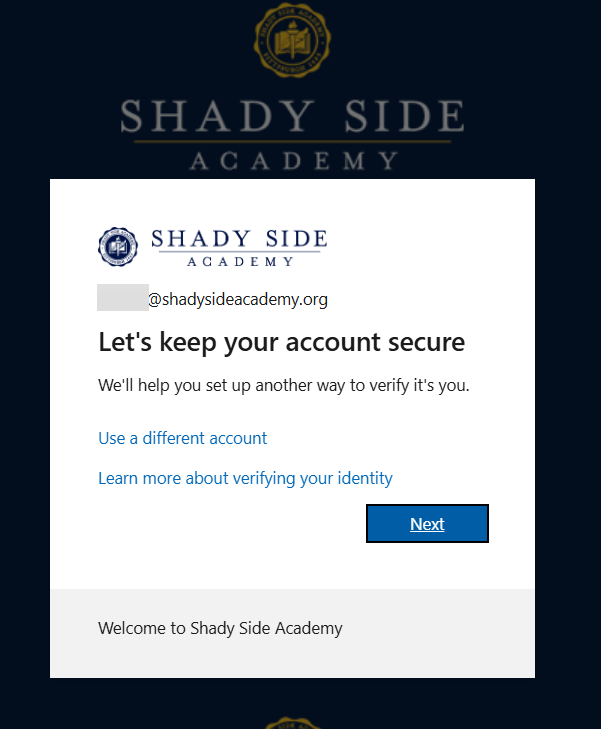
Click next to set up Microsoft Authenticator then click Next on installing Microsoft Authenticator and Set up your account in app
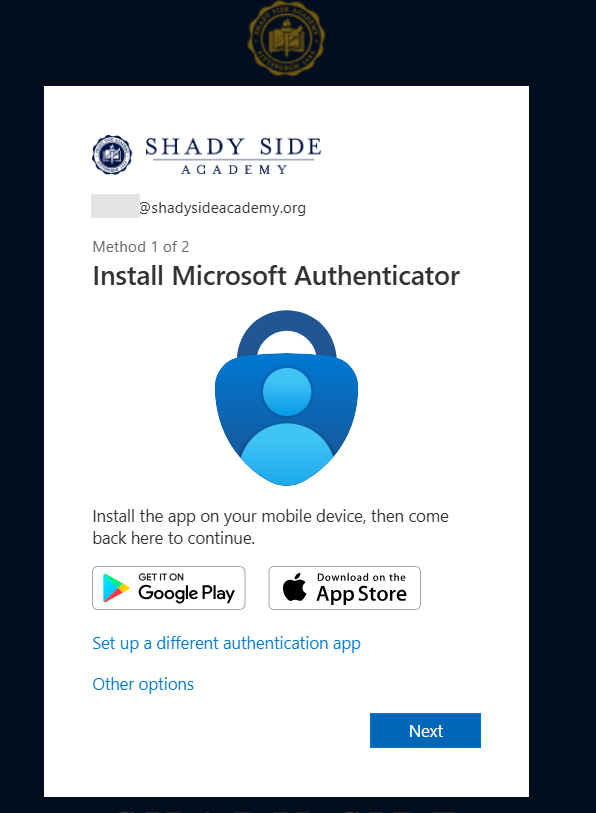
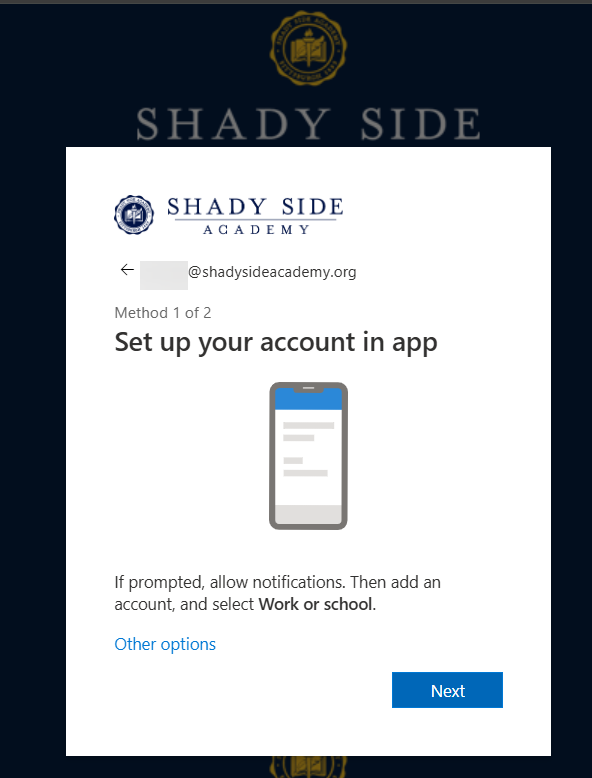
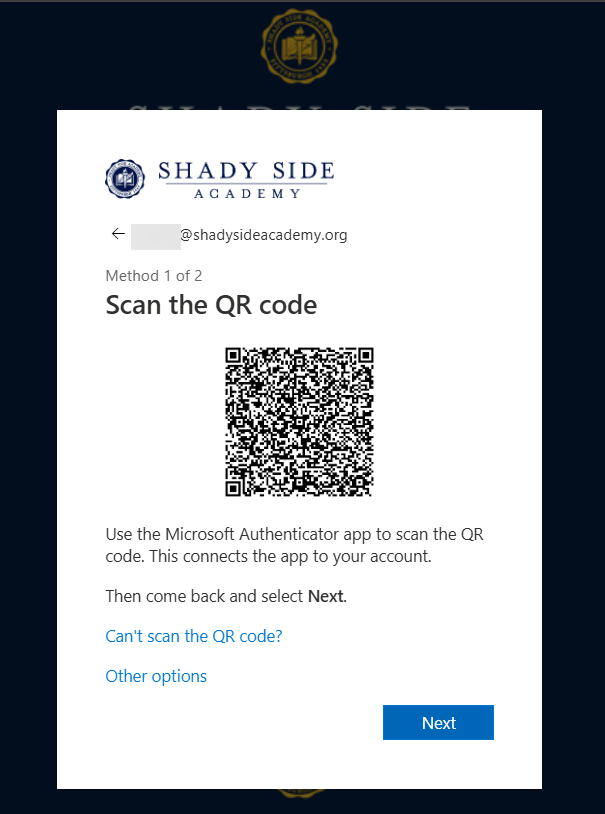
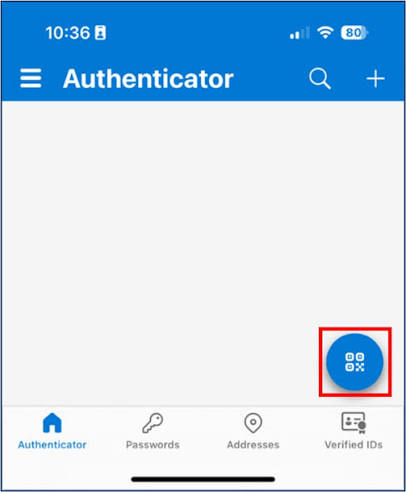
Open your Microsoft Authenticator App and click on the Scan QR Code icon and scan the QR code on your computer screen and click Next
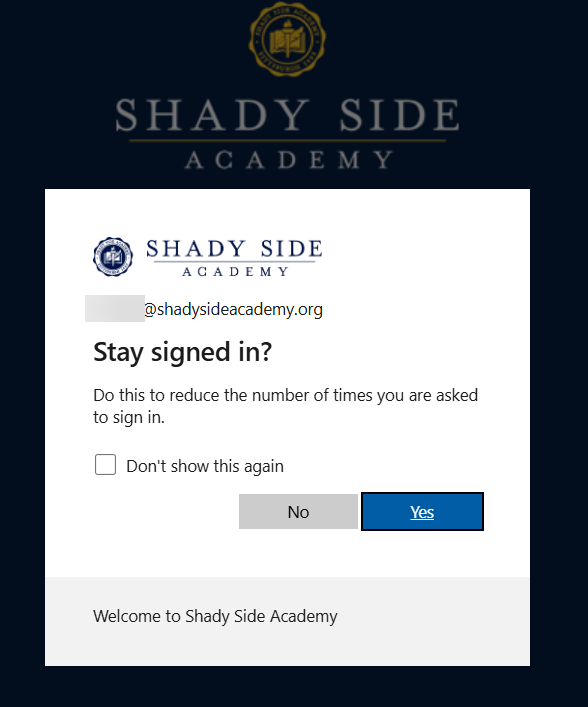
If you are prompted to add a phone number you may do so. You will then be asked if you want to stay signed in...choose Yes
For Veracross/Parent/Staff Teacher Portals:
Go to https://www.shadysideacademy.org/ choose Portals in upper right-hand corner and select correct Portal.
Enter your username
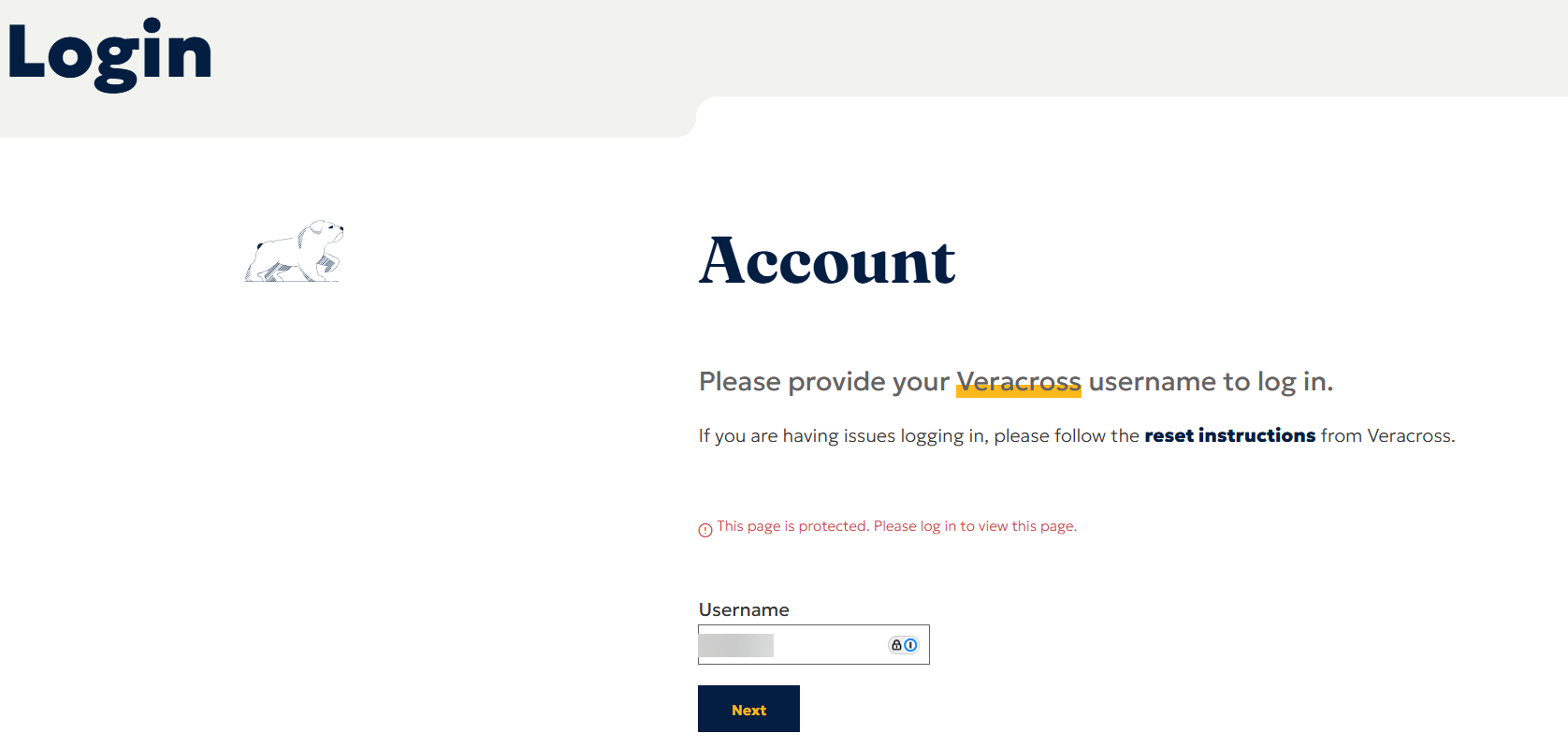
You will be redirected to the site below where you will enter your username and password
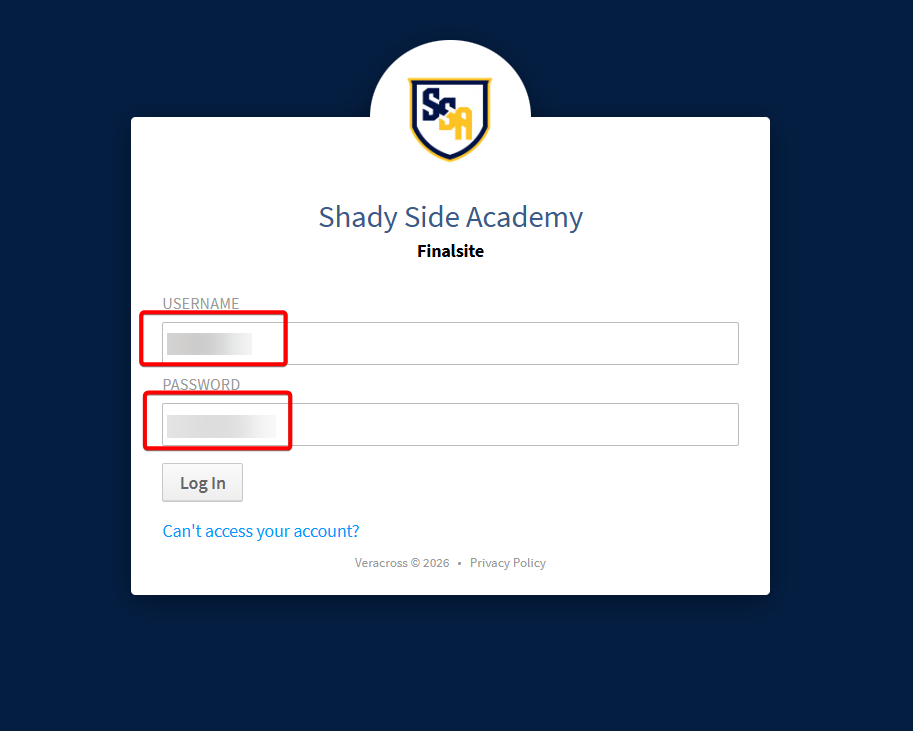
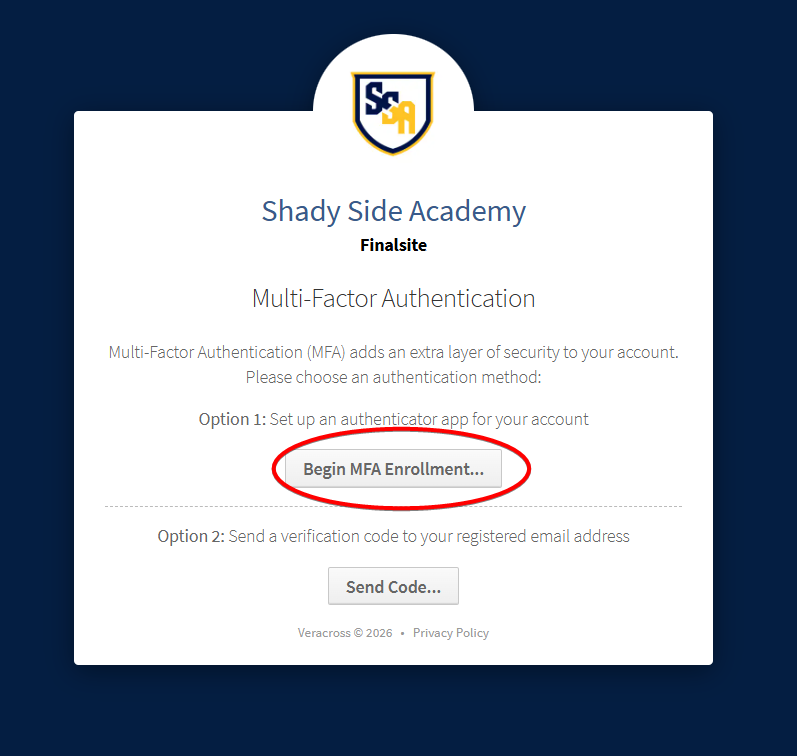
Click on Begin MFA Enrollment
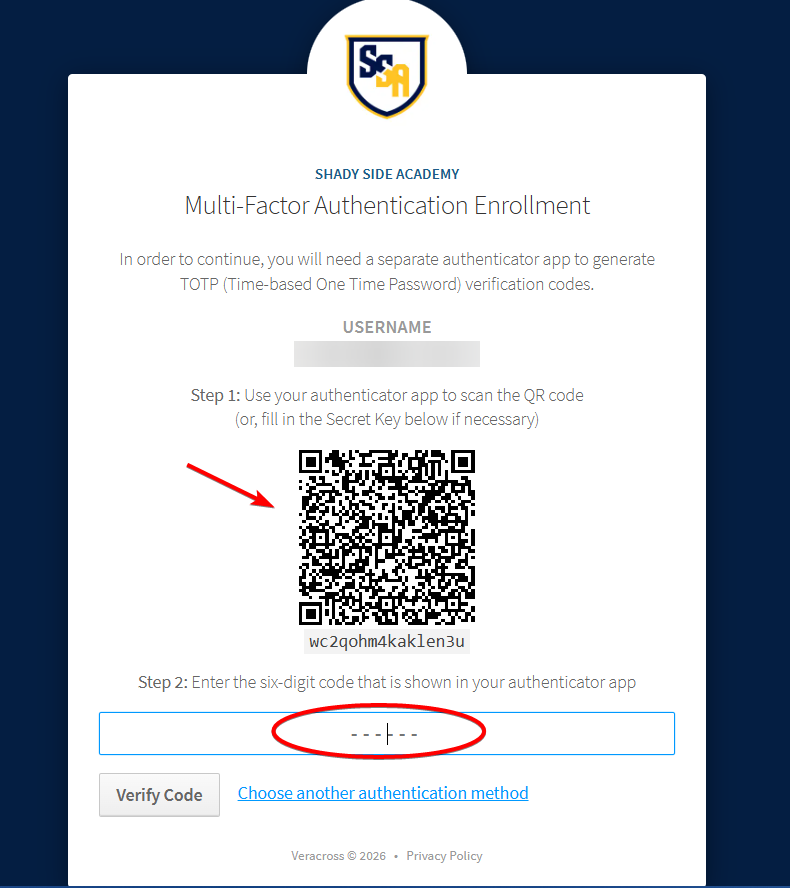
Open your Microsoft Authenticator App on your phone and click on the scan QR code icon
Scan the QR Code on your computer and then enter the 6-digit number that shows for Veracross in your Microsoft Authenticator App and click Verify Code
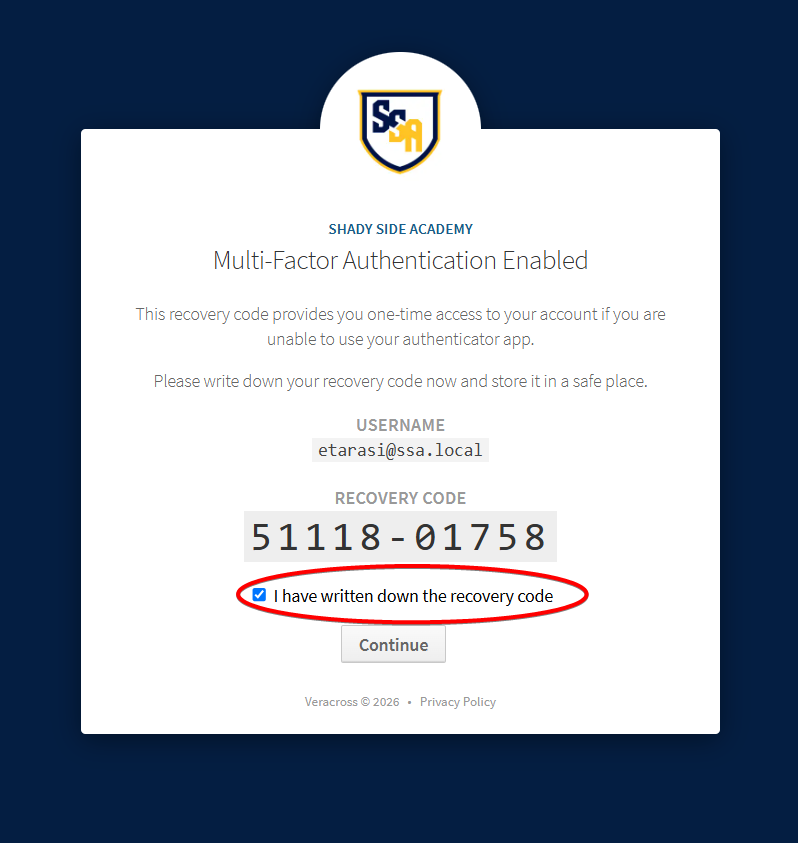
Write down your Recovery Code. Check the box that you have written it down and click Continue