


StudentSquare is Shady Side Academy's managed communications platform. This guide walks new teachers and coaches through activating an account, setting up notifications and office hours, and installing the mobile app.
In this article
- Sign in for the first time
- Review and verify your contact information
- Open your account settings
- Choose your notification settings
- Set your office hours
- Get the mobile app
1. Sign in for the first time
Account setup is easier on a laptop than on a phone.
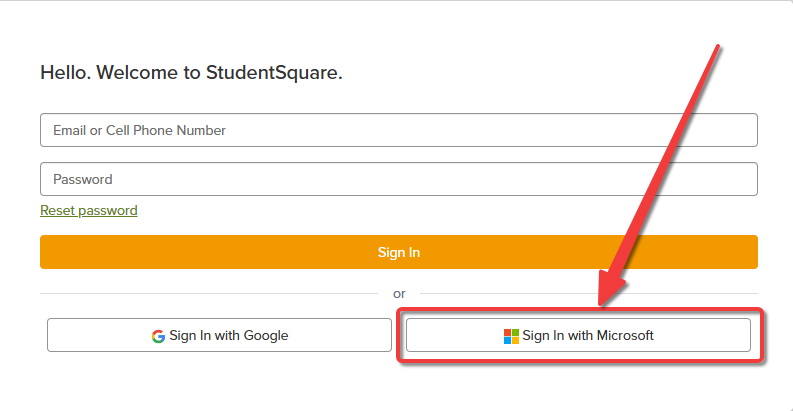
- Go to mystudentsquare.com.
- Click Sign in with Microsoft and use your school account.
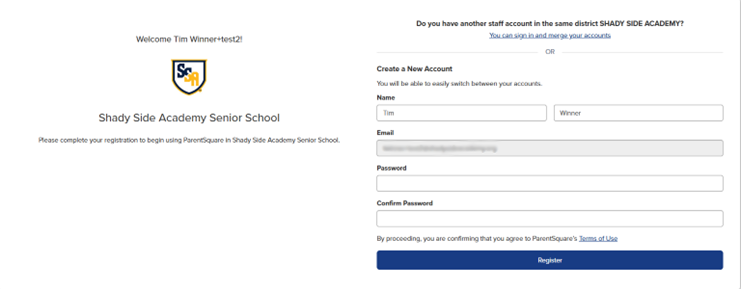
After you follow the activation link in your invitation email, you may be asked to create an account. If so, fill in the form and click Register.
2. Review and verify your contact information
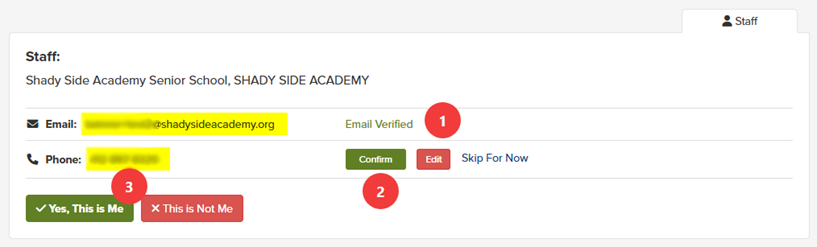
- Confirm your email. It may already say Email Verified.
- Confirm your cell phone number by clicking the green Confirm button.
- Finish by clicking Yes, This is Me.
3. Open your account settings
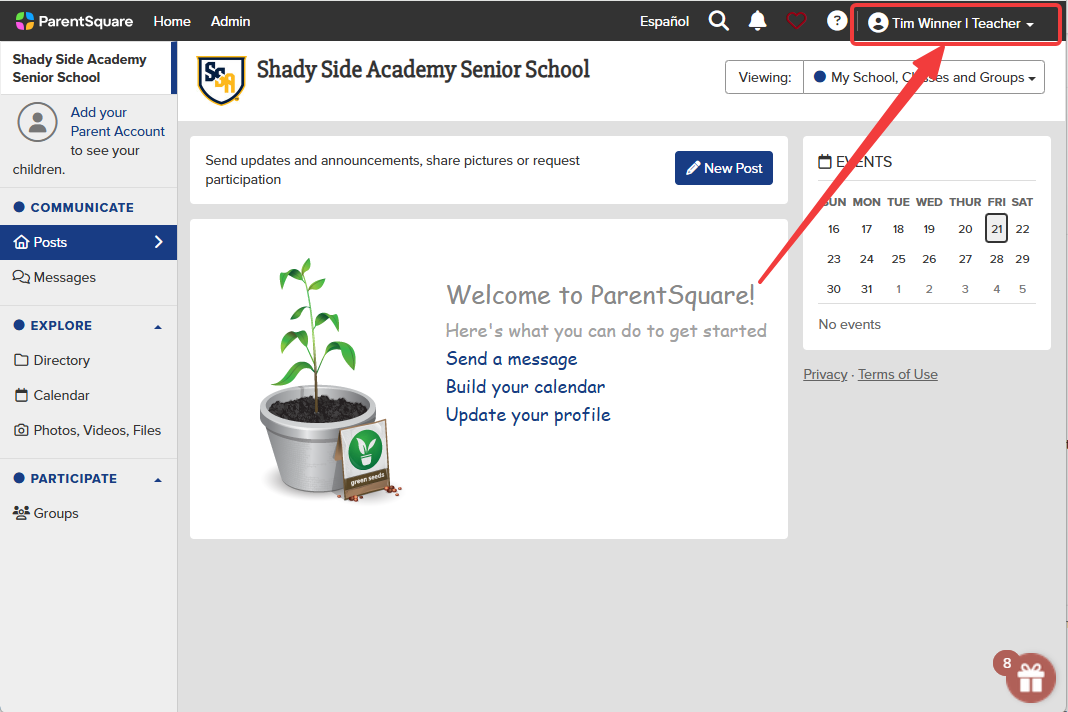
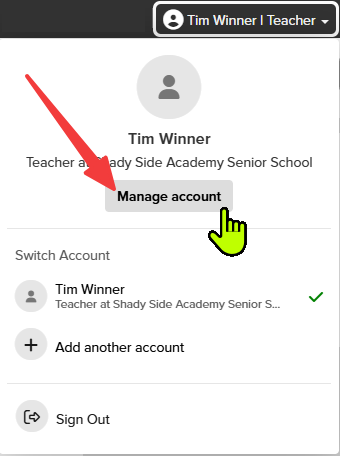
Click your name in the top-right corner of the page, then click Manage account.
4. Choose your notification settings
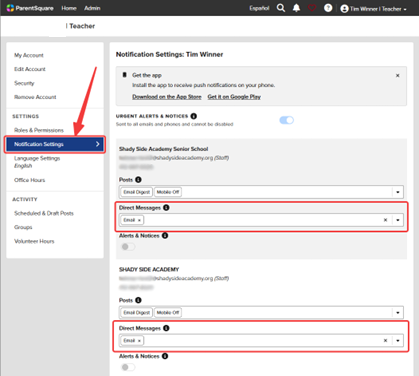
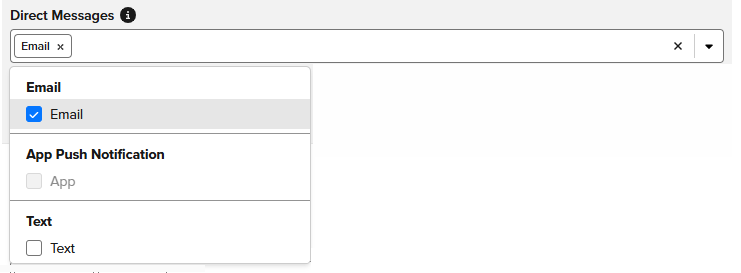
In the left menu, click Notification Settings. For each school you belong to, use the Direct Messages dropdown to choose how you're notified: Email, App Push Notification, and/or Text.
5. Set your office hours
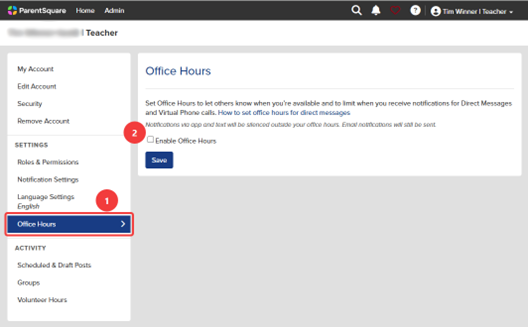
Office hours let others know when you're available and limit when you receive notifications for Direct Messages and Virtual Phone calls.
- In the left menu, click Office Hours.
- Check Enable Office Hours.
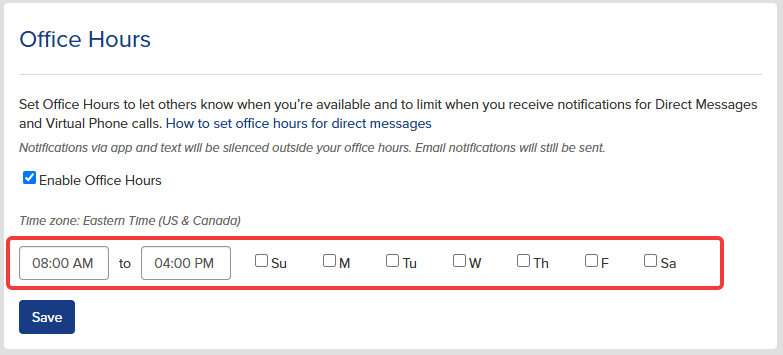
- Set your start and end times and check the days you're available.
- Click Save.
6. Get the mobile app
Download the StudentSquare app from the Apple App Store or the Google Play Store.